Views & Layout
Everyone browses differently. bookmark.land lets you switch between views, resize panels, and sort your bookmarks the way that works best for you.
List View
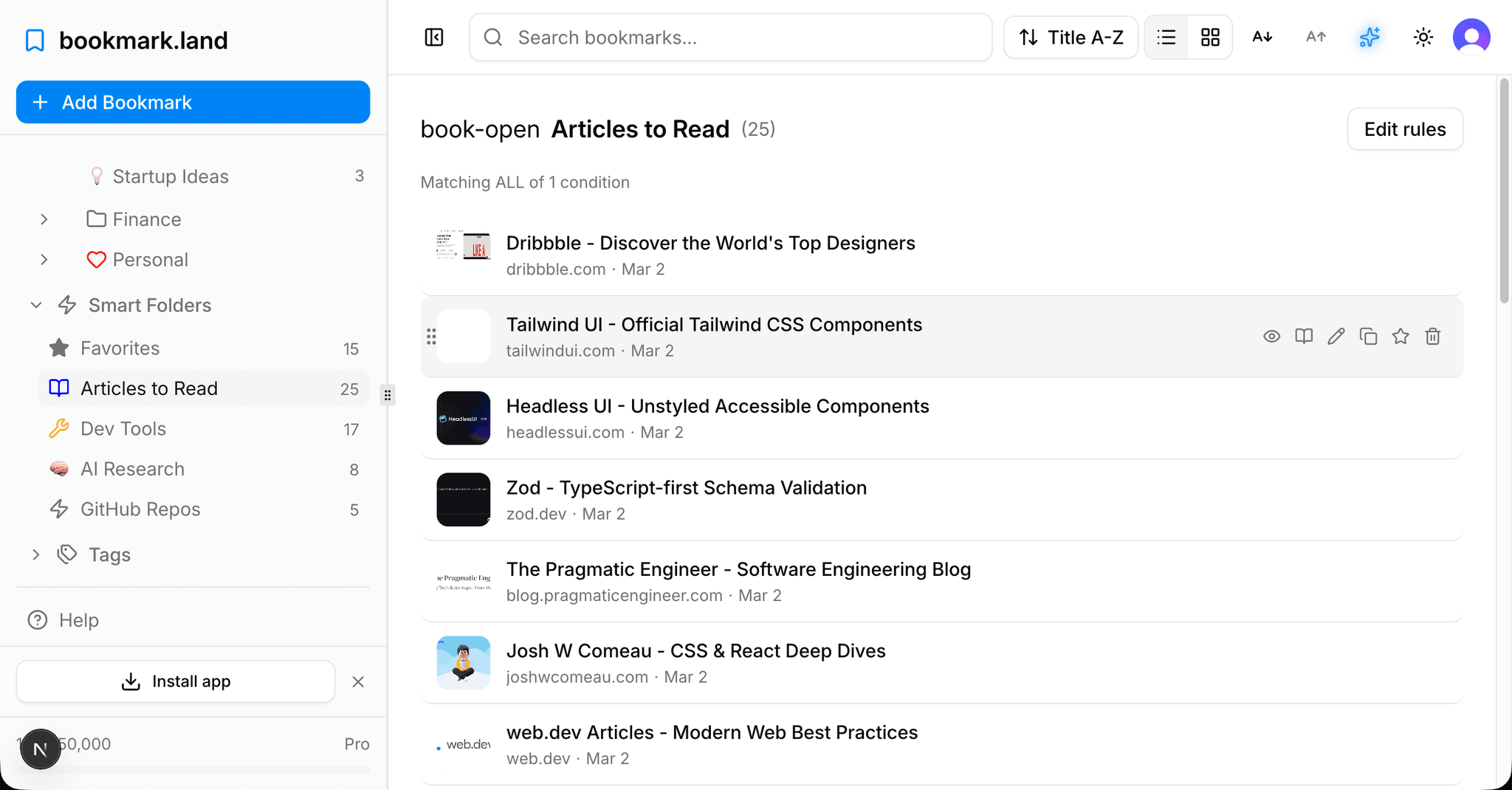
This is the default layout. Each bookmark appears as a compact row showing the favicon, title, domain, tags, and the date you saved it. Hover over any row to reveal quick actions -- edit, star, or trash -- without opening a menu.
Grid View
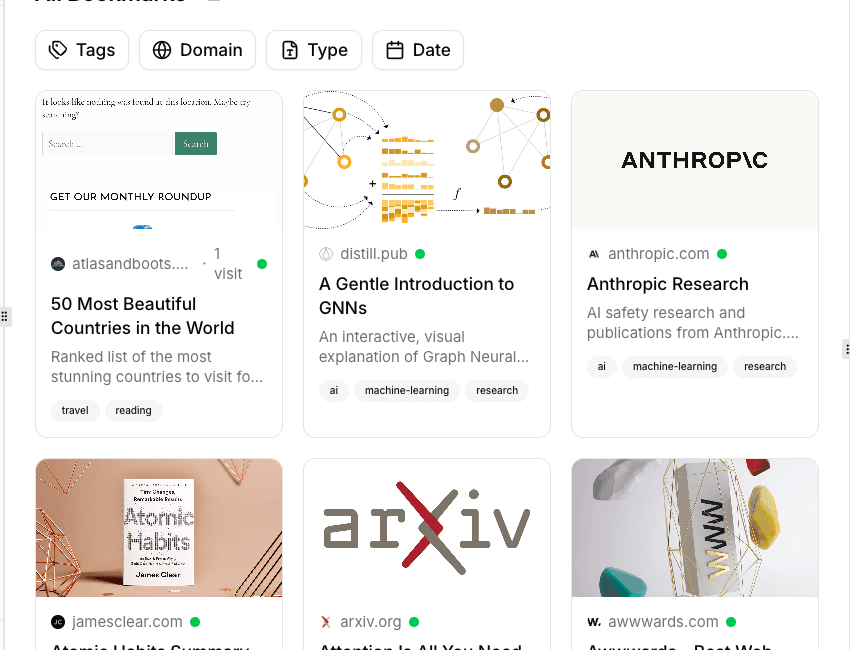
Prefer a more visual layout? Toggle grid view from the toolbar and each bookmark becomes a card with a preview thumbnail, title, domain, and tags. This is especially handy when you are browsing a collection of design references or visual inspiration.
Preview Panel
Click any bookmark to open the preview panel on the right side of the screen. It loads the page in an embedded iframe so you can skim the content without leaving your dashboard or opening a new tab. You can drag the panel's left edge to make it wider or narrower depending on what you need.
To close the preview, click the same bookmark again or press Escape.
Sidebar
The sidebar is where your collections, smart folders, tags, and navigation live. On desktop, you can resize it by dragging its edge. On mobile, it opens as a slide-over sheet. If you want a full-width bookmark view, just collapse the sidebar and it gets out of your way.
Sorting Options
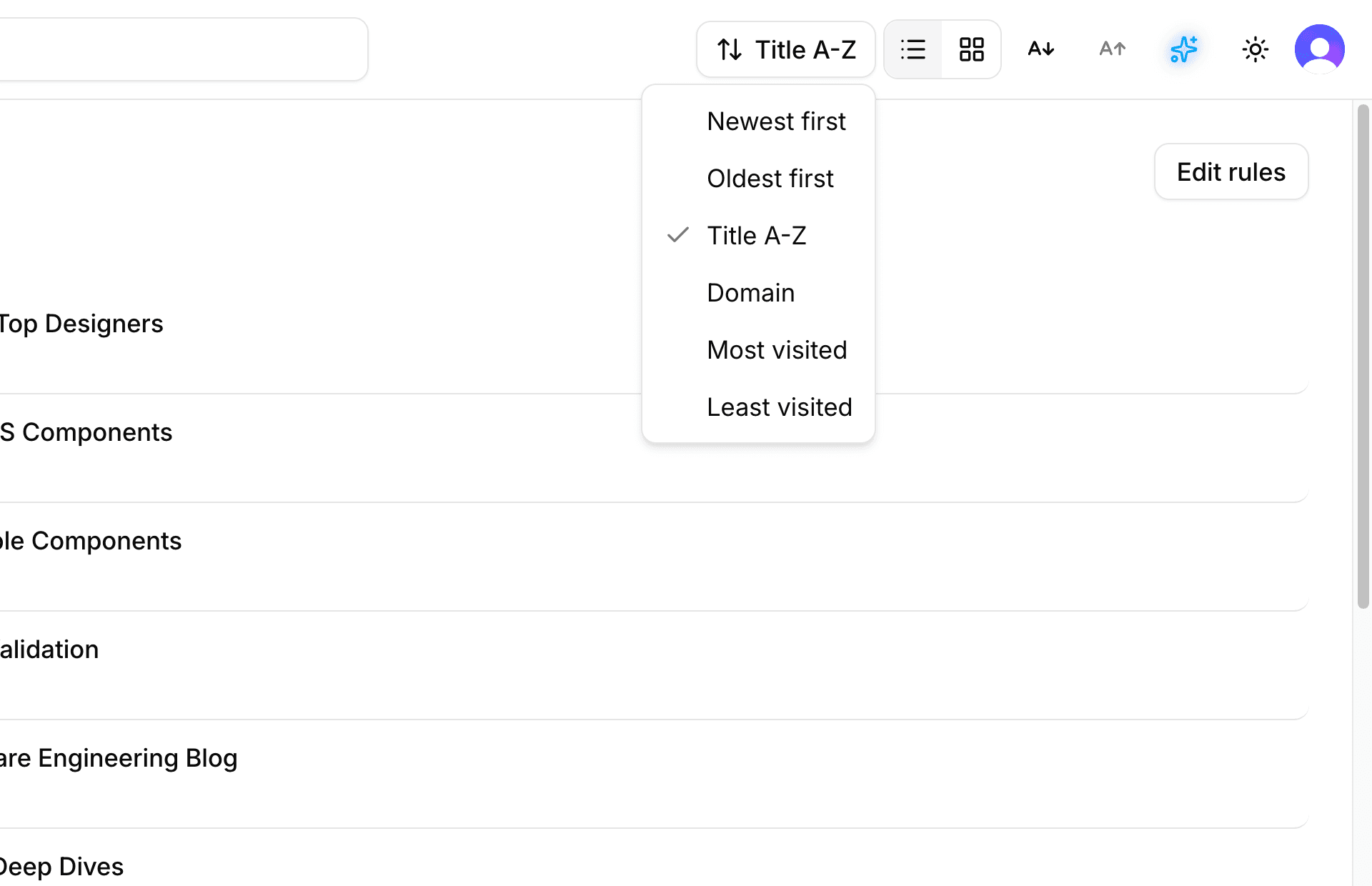
Use the sort dropdown in the toolbar to reorder bookmarks by date added, title, or URL, in ascending or descending order. Your sort preference is saved per view, so you will not need to reset it every time you visit.
Dark Mode
bookmark.land has full dark mode support with automatic system preference detection. You can toggle it manually from the theme switcher in the header, or leave it on “System” to let it follow your OS setting automatically.
Frequently Asked Questions
Does my chosen view persist when I switch collections?
Yes. Your view preference (list or grid) and sort order are remembered per view, so each collection keeps its own layout the way you left it.
Can I use the preview panel on mobile?
The preview panel is designed for larger screens. On mobile devices, tapping a bookmark opens it directly in a new tab instead.
How do I reset the sidebar to its default width?
Double-click the sidebar's drag handle to snap it back to its default size, or collapse and re-expand it.