Smart Folders
Smart Folders are like saved searches that live in your sidebar. You define a set of rules, and bookmark.land automatically gathers every bookmark that matches -- no dragging, no sorting, no manual upkeep required.
How to Create a Smart Folder
Click New Smart Folder in the sidebar, give it a name, and then add one or more rules. Here are the rule types you can choose from:
- Tag contains -- pull in bookmarks that carry a specific tag.
- Domain is -- match bookmarks from a particular website.
- Type is -- target a content type like article, video, document, or image.
- Title/URL contains -- catch bookmarks whose title or URL includes a keyword you specify.
- Date range -- include only bookmarks saved within a certain time window.
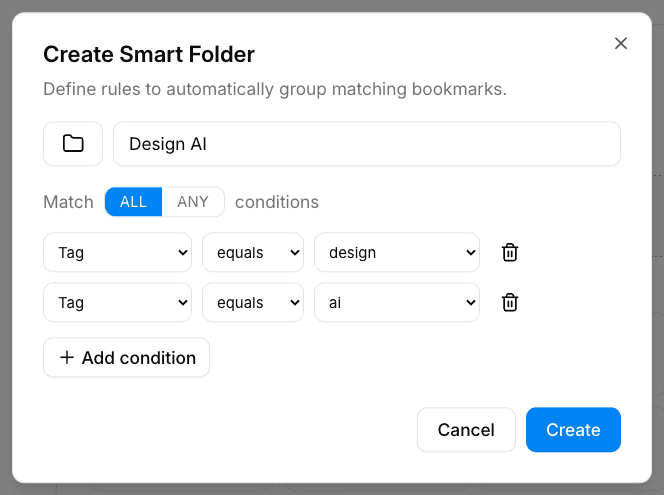
Combining Multiple Rules
When you add more than one rule, they are joined with AND logic. A bookmark has to satisfy every rule to show up in the folder. For example, if your rules are “tag = design” AND “domain = dribbble.com,” only Dribbble links that are also tagged “design” will appear.
Smart Folder Ideas to Get You Started
| Name | Rules | What You Get |
|---|---|---|
| Reading List | Type = Article | Every article you have saved, gathered in one place |
| GitHub Repos | Domain = github.com | All your GitHub bookmarks without hunting through collections |
| This Week | Date = Last 7 days | A quick look at everything you saved recently |
| Design Videos | Tag = design, Type = Video | Design tutorial videos filtered from everything else |
Where Smart Folders Appear
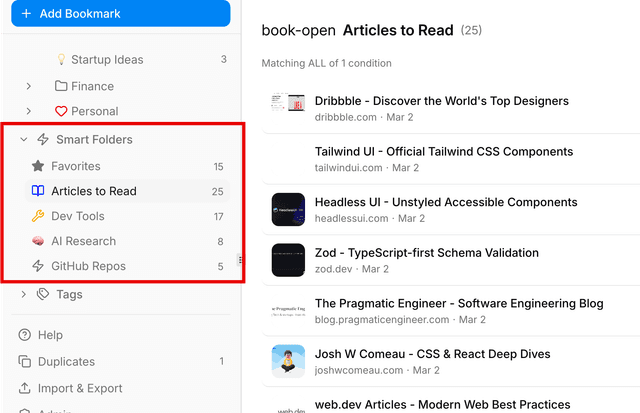
You will find your smart folders in their own section in the sidebar, just below your regular collections. Each one displays a live count of how many bookmarks currently match its rules. Click any smart folder and it opens just like a regular collection -- you can search, filter, and sort within it.
Frequently Asked Questions
Do smart folders update automatically when I add new bookmarks?
Yes. Smart folders are completely dynamic. The moment you save a bookmark that matches the rules, it shows up in the folder. If you later change a tag or move a bookmark so it no longer matches, it disappears from the folder automatically.
Can a single bookmark appear in multiple smart folders?
Absolutely. A bookmark lives in your library and simply shows up in every smart folder whose rules it satisfies. It is not moved or duplicated -- just referenced.
Is there a limit to how many rules I can add?
There is no hard limit. However, because rules use AND logic, adding too many can narrow your results down to nothing. Start with one or two rules and add more only if you need tighter filtering.