Import & Export
Switching bookmark managers should not mean starting over. bookmark.land makes it easy to bring your existing bookmarks in from any major browser or service, and just as easy to take your data with you if you ever need to.
How to Import Your Bookmarks
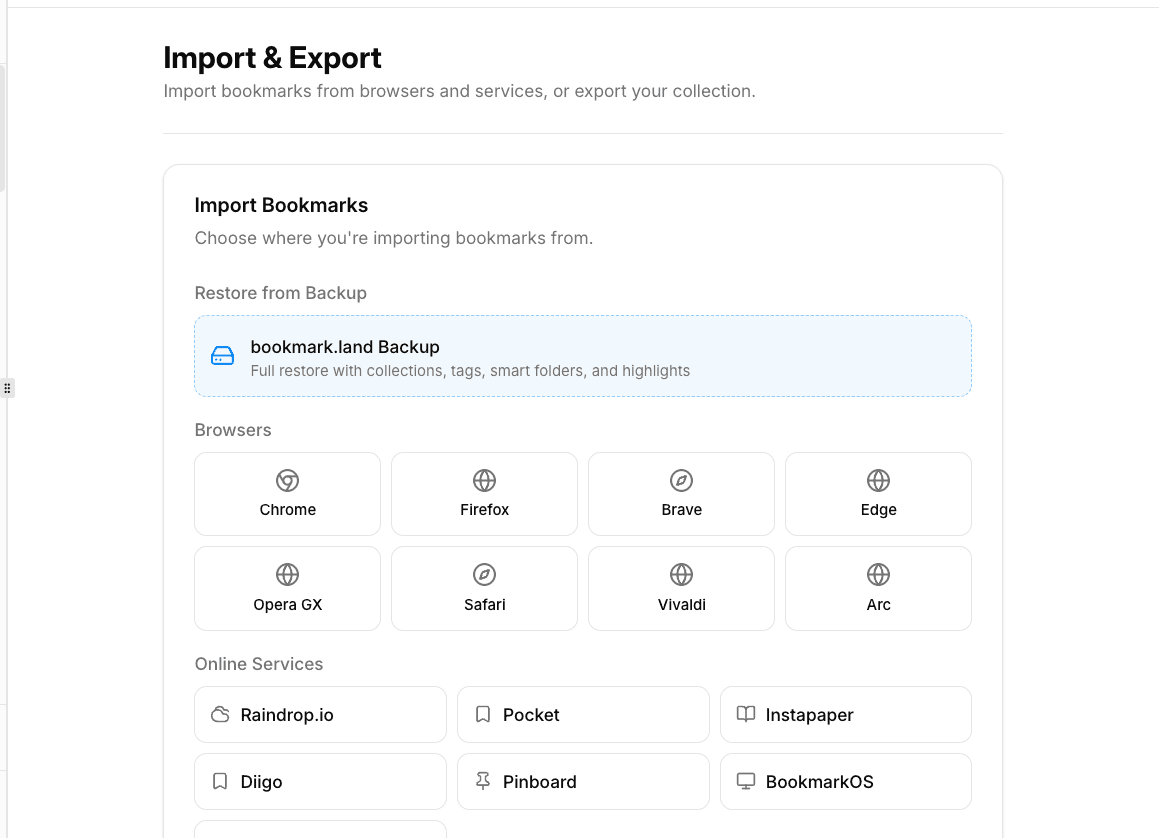
Open Import & Export from the sidebar menu and click Import. Then pick the file you exported from your previous tool:
Supported Import Sources
| Source | Format | How to Get the File |
|---|---|---|
| Chrome / Edge | Netscape HTML | Export from chrome://bookmarks -- your folder structure is preserved |
| Firefox | Netscape HTML | Bookmarks → Manage → Import/Export |
| Safari | Netscape HTML | File → Export Bookmarks |
| Raindrop.io | HTML or CSV | Settings → Export → Download the .html or .csv file |
| HTML | Export from getpocket.com/export | |
| bookmark.land | JSON | Re-import a backup you previously exported |
What Happens During Import
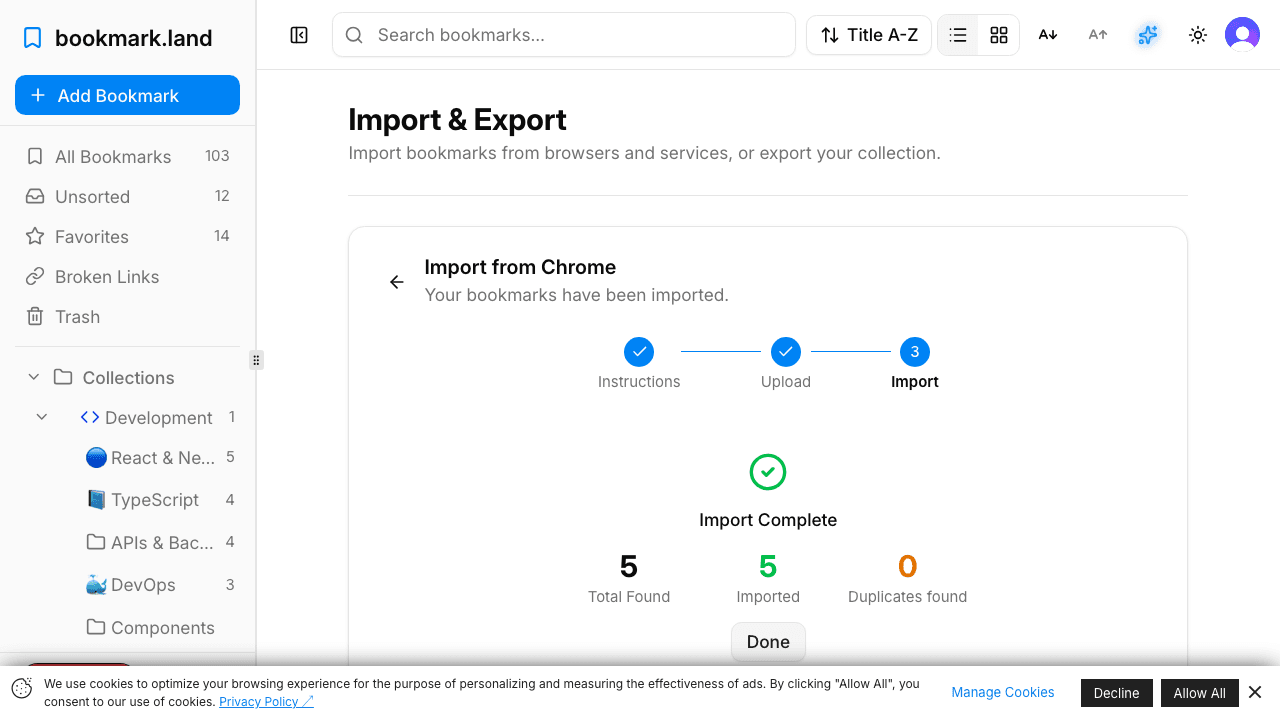
- You select your file (HTML, CSV, or JSON).
- bookmark.land detects the source format automatically -- no manual configuration needed.
- Any folder hierarchy in the file is converted into nested collections.
- Bookmarks are imported in batches of 50 for reliability, so large libraries are handled smoothly.
- Duplicate URLs are detected and skipped, so you will not end up with double entries.
- Metadata like the title, description, and favicon is fetched automatically for each new bookmark.
How to Export Your Bookmarks
Your data belongs to you. Export it anytime in three formats:
| Format | Best For |
|---|---|
| HTML | The universal format -- import it into any browser or other bookmark manager |
| CSV | Spreadsheets, data analysis, or custom scripting |
| JSON | A full backup with all metadata, ready to re-import into bookmark.land |
Offline HTML Copy
The Offline Copy option generates a self-contained HTML file that works without an internet connection. It includes built-in search, collection navigation, and all of your bookmark data packed into a single file. This is especially useful when you need to:
- Access your bookmarks on a work computer that blocks bookmark.land
- Browse your collection while traveling without reliable internet
- Keep a portable backup you can open in any browser, anywhere
Frequently Asked Questions
Will importing create duplicate bookmarks?
No. bookmark.land checks each URL during import and skips any that already exist in your library. You can safely re-import the same file without ending up with duplicates.
How long does a large import take?
Imports run in batches of 50 bookmarks at a time. A library of a few thousand bookmarks typically finishes within a couple of minutes. You can watch the progress indicator as it goes.
Can I export just one collection instead of everything?
Currently, export covers your entire library. If you need bookmarks from a single collection, you can filter by that collection first and then use the export option -- the resulting file will contain only the visible bookmarks.