Keyboard Shortcuts
If you like keeping your hands on the keyboard, you will feel right at home. These shortcuts let you navigate, search, and manage your bookmarks without ever reaching for the mouse.
Global Shortcuts
These work from anywhere in the app, no matter which page you are on.
| Shortcut | Action |
|---|---|
| / | Focus the search bar |
| N | Add a new bookmark |
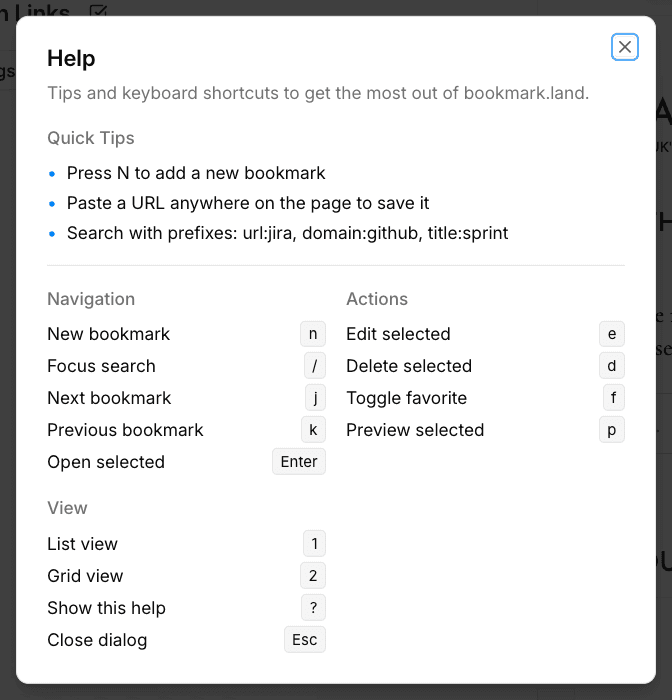
| ? | Show the keyboard shortcuts reference |
| Escape | Close dialog / close preview panel / exit bulk mode |
Navigating Your Bookmarks
Move through your bookmark list and open items quickly with these keys.
| Shortcut | Action |
|---|---|
| J | Move to the next bookmark |
| K | Move to the previous bookmark |
| Enter | Open the selected bookmark in a new tab |
| P | Open the preview panel for the selected bookmark |
Bookmark Actions
Once you have a bookmark selected, use these shortcuts to edit, favorite, or remove it.
| Shortcut | Action |
|---|---|
| E | Edit the selected bookmark |
| F | Toggle favorite on the selected bookmark |
| D | Move the selected bookmark to trash |
Switching Views
Toggle between list and grid layouts with a single keystroke.
| Shortcut | Action |
|---|---|
| 1 | Switch to list view |
| 2 | Switch to grid view |
Frequently Asked Questions
Do shortcuts work when a dialog or modal is open?
Most shortcuts are disabled while a dialog is open to prevent accidental actions. The Escape key always works and will close the active dialog.
Can I customize the keyboard shortcuts?
Custom key bindings are not available yet. The current shortcuts are designed to feel familiar if you have used Vim-style navigation or tools like Gmail.
Is there a quick way to see all available shortcuts while using the app?
Yes — press ? to open the keyboard shortcuts reference overlay, which lists every available shortcut on a single screen.