Tags
While collections organize your bookmarks into folders, tags let you label them across those boundaries. A bookmark in your “Work” collection can also carry the tags “design” and “inspiration” — then you can filter by tag no matter which collection you are browsing.
Adding Tags to a Bookmark
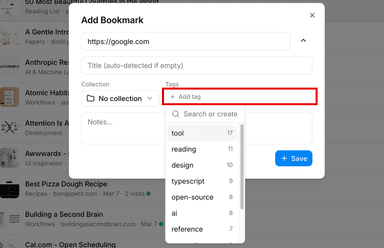
You can add tags whenever you create or edit a bookmark. Just type a tag name and press Enter. As you type, you will see autocomplete suggestions from your existing tags, which helps you stay consistent and avoid accidental duplicates like “react” and “React”.
Browsing Tags in the Sidebar
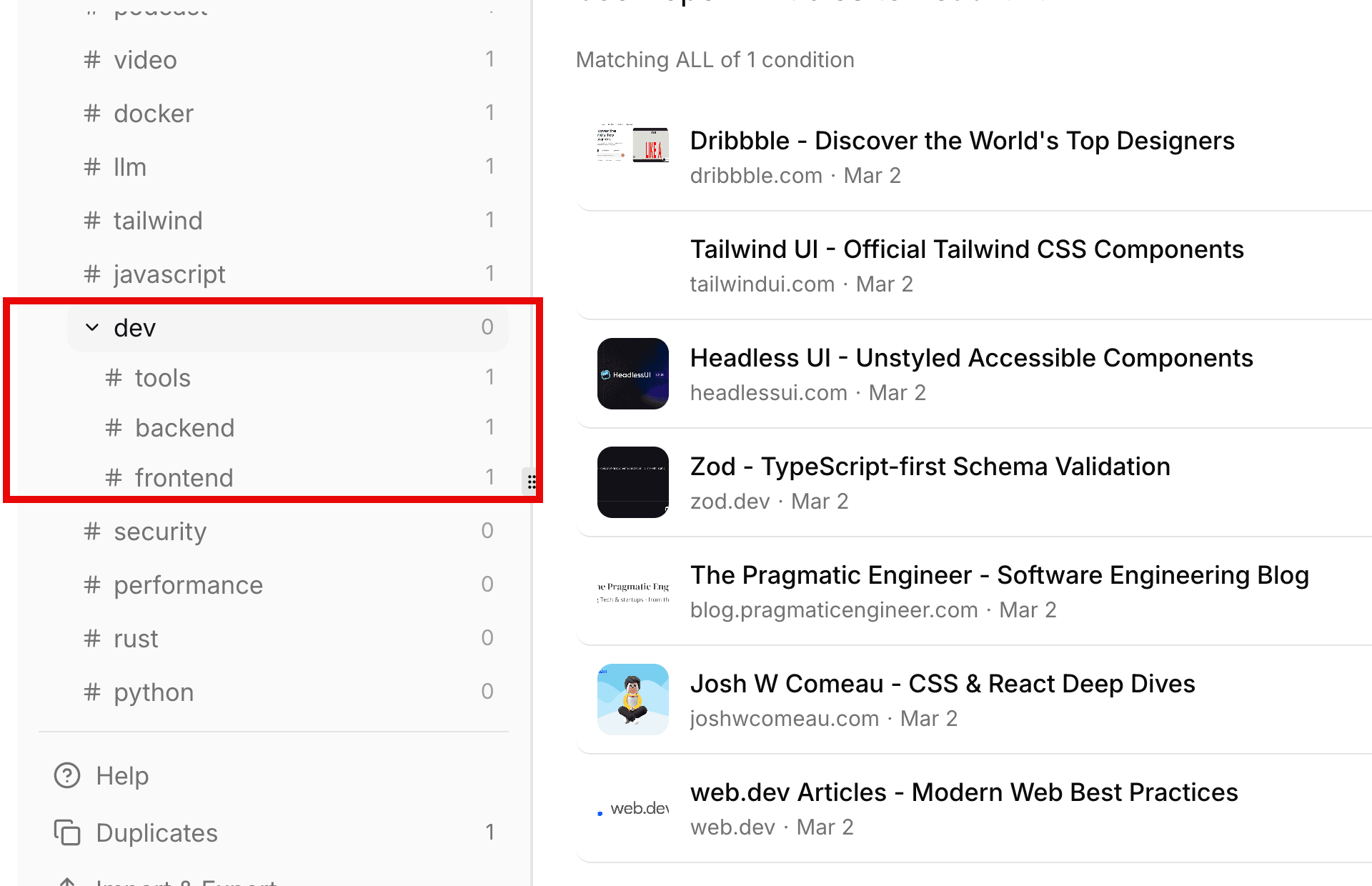
Your sidebar shows every tag you have used, along with a count of how many bookmarks carry each one. Click any tag to instantly filter your list down to just those bookmarks. If the tag section gets long, you can collapse it to reclaim sidebar space.
Organizing Tags into Hierarchies
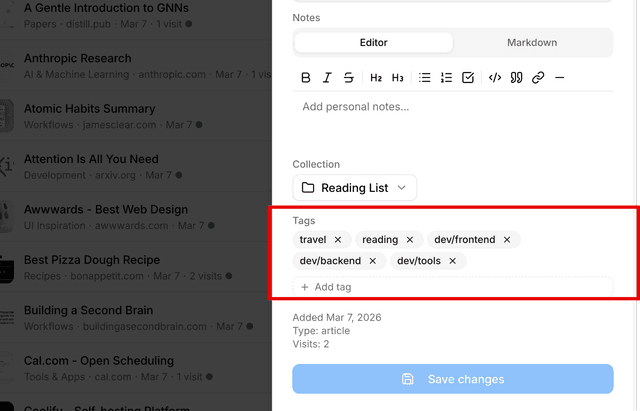
If you want more structure, use the / separator to create tag hierarchies. For example, dev/frontend and dev/backendwill automatically group under a dev parent in the sidebar. When you click the parent tag, you will see all bookmarks tagged with any of its children.
Combining Tags with Other Filters
Clicking a tag in the sidebar is just the starting point. You can layer tag filters with search queries, domain filters, and date ranges to zero in on exactly the bookmarks you are looking for. Active tags also show up as removable filter chips near the search bar, so you can see at a glance what filters are applied.
How Tags Are Created and Cleaned Up
Tags are created automatically the first time you add one to a bookmark — there is no separate setup step. If you want to remove a tag from your library entirely, just remove it from every bookmark that uses it. Once a tag is no longer attached to any bookmark, it gets cleaned up automatically.
Frequently Asked Questions
How are tags different from collections?
A bookmark can belong to only one collection, but it can carry as many tags as you like. Collections give your bookmarks a home; tags let you slice across collections by topic, project, or any label that makes sense to you.
Is there a limit to how many tags I can create?
There is no fixed limit on the number of tags. You can create as many as you need. Just keep in mind that staying consistent with naming (the autocomplete helps with this) will make filtering more useful over time.
Can I rename a tag?
There is currently no bulk-rename feature. To rename a tag, you would remove the old tag from your bookmarks and add the new one. For bookmarks that share the same tag, bulk actions make this quicker — see the Bulk Actions guide.