Getting Started
Ready to tame your bookmarks? This guide will walk you through creating your account, finding your way around the dashboard, and saving your very first bookmark. The whole thing takes less than a minute.
1. Create Your Account
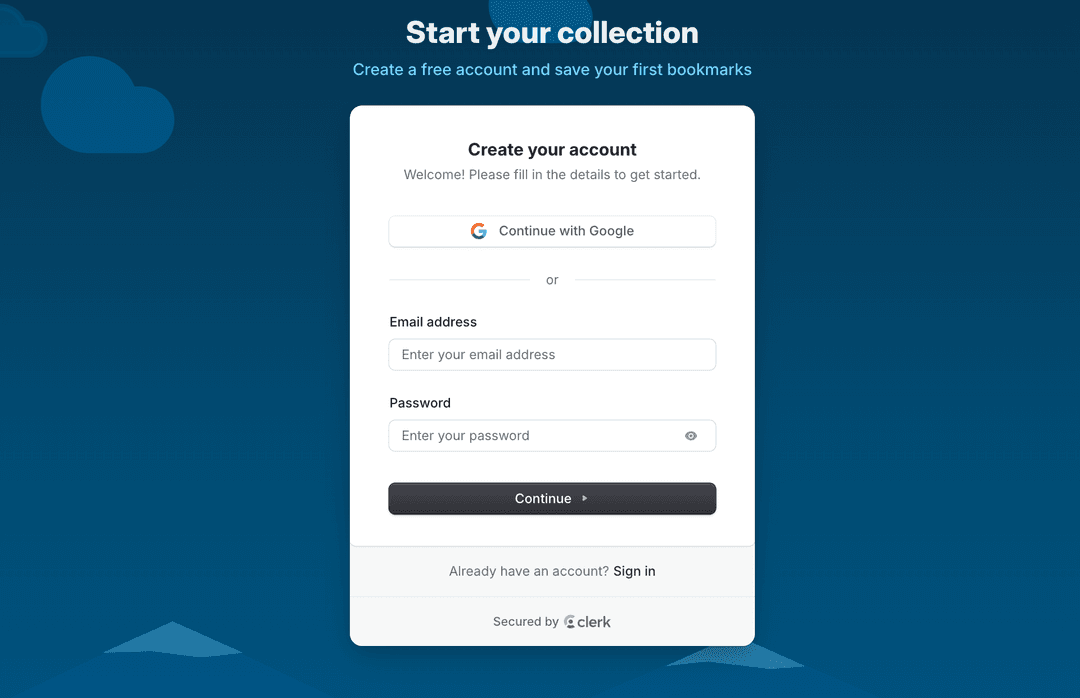
Head over to bookmark.land and click Get Started Free. You can sign up with your email address, or skip the form entirely by using Google or GitHub single sign-on. No credit card is needed — the free plan gives you up to 100 bookmarks right away.
2. The Dashboard at a Glance
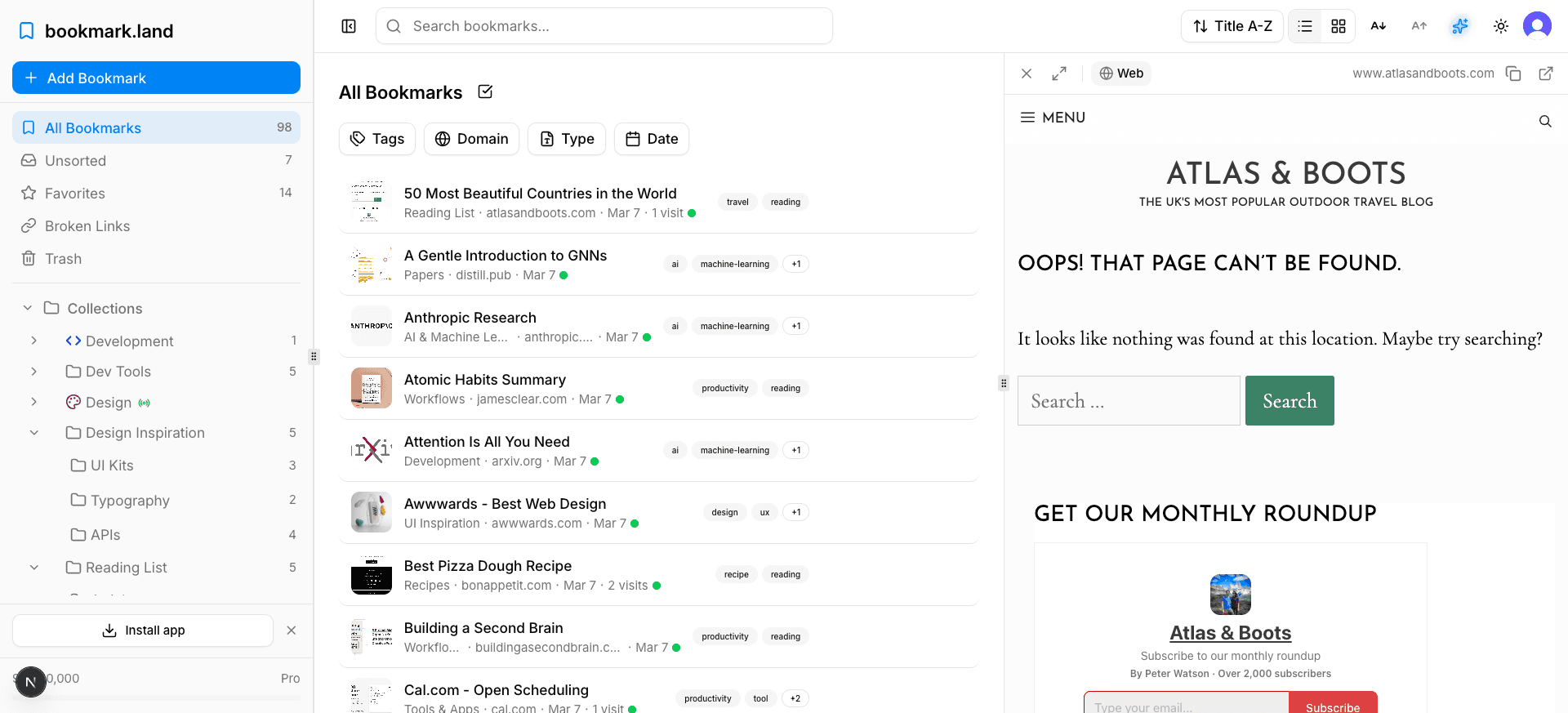
Once you sign in, you will land on the Dashboard. It is split into three main areas:
- Sidebar (left) — This is your navigation hub. You will find your collections, smart folders, tags, and quick-access links here. You can collapse it any time you want more room.
- Bookmark list (center) — All your saved links live here. Sort them, search through them, or apply filters to narrow things down.
- Preview panel (right) — Click any bookmark to preview the page without leaving the app. It is a fast way to check what a link is about.
3. Save Your First Bookmark
Click the + Add Bookmark button at the top of the list, or just press N on your keyboard. Paste any URL and hit Enter. bookmark.land takes care of the rest — it automatically pulls in the title, description, favicon, and a preview image for you.
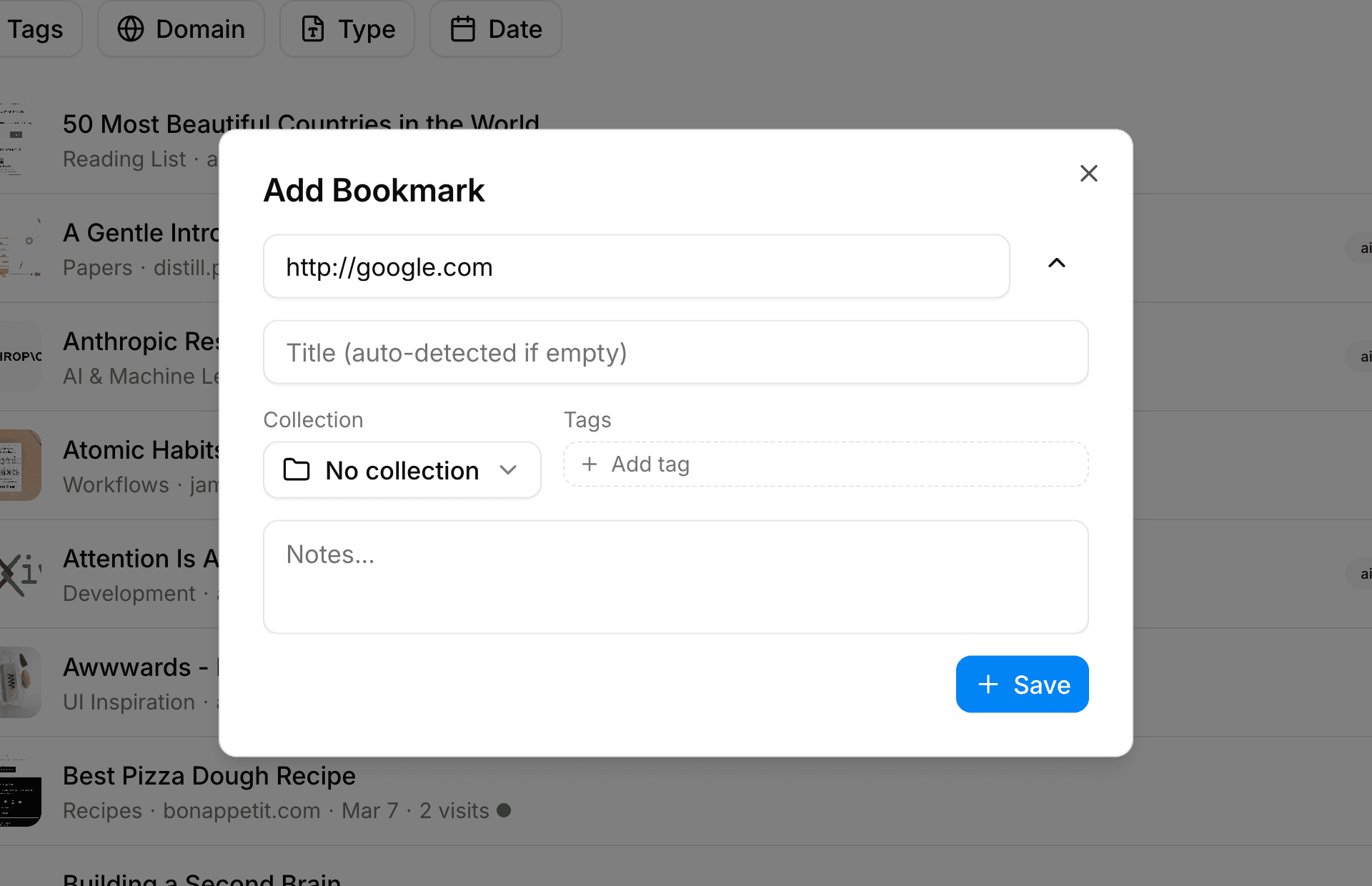
While you are there, you can also assign a collection, add tags, mark it as a favorite, or jot down a quick note — all from the same dialog.
4. What to Explore Next
You have got your first bookmark saved. Here are a few things worth trying next:
- Create your first Collection to group bookmarks by topic or project.
- Import your existing bookmarks from Chrome, Firefox, Raindrop, or Pocket.
- Set up Smart Folders that automatically sort bookmarks based on rules you define.
Frequently Asked Questions
Do I need a credit card to get started?
Not at all. The free plan is completely free and includes up to 100 bookmarks. You only need to enter payment information if you decide to upgrade to a paid plan later.
Can I import bookmarks from another service?
Yes. bookmark.land supports imports from Chrome, Firefox, Raindrop, and Pocket. Head over to the Import & Export guide for step-by-step instructions.
Is my data private?
Your bookmarks are private by default. Only you can see them unless you explicitly share a collection via a public link. You are always in control of what is shared.