Collections
Think of collections as folders for your bookmarks. You can nest them as deep as you like, personalize them with icons or emojis, and drag them around to get the order just right.
Creating a Collection
Click New Collection in the sidebar, or press Shift+Nfor a quick shortcut. Give your collection a name and, if you want, pick a parent collection to nest it under. That is all there is to it.
Nesting Collections Inside Each Other
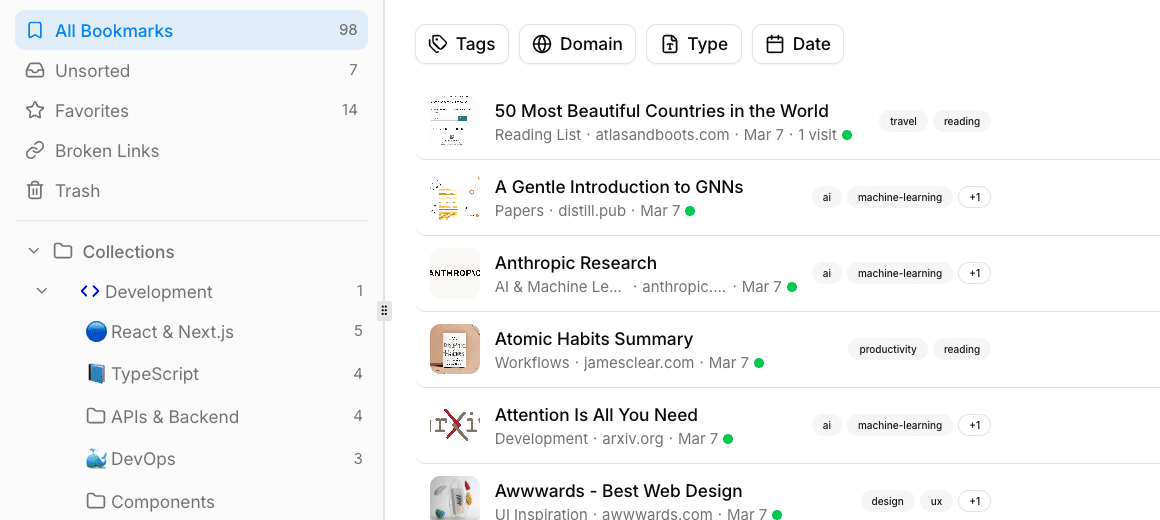
Collections can be nested to any depth, so you can build out a structure that matches the way you think. When you create or edit a collection, just pick a Parent collection to tuck it inside. The sidebar displays the full tree with expand/collapse controls so things stay tidy.
For example, you might organize your development resources like this:
- Development → Frontend → React
- Development → Frontend → CSS
- Development → Backend → APIs
Personalizing with Icons and Emojis
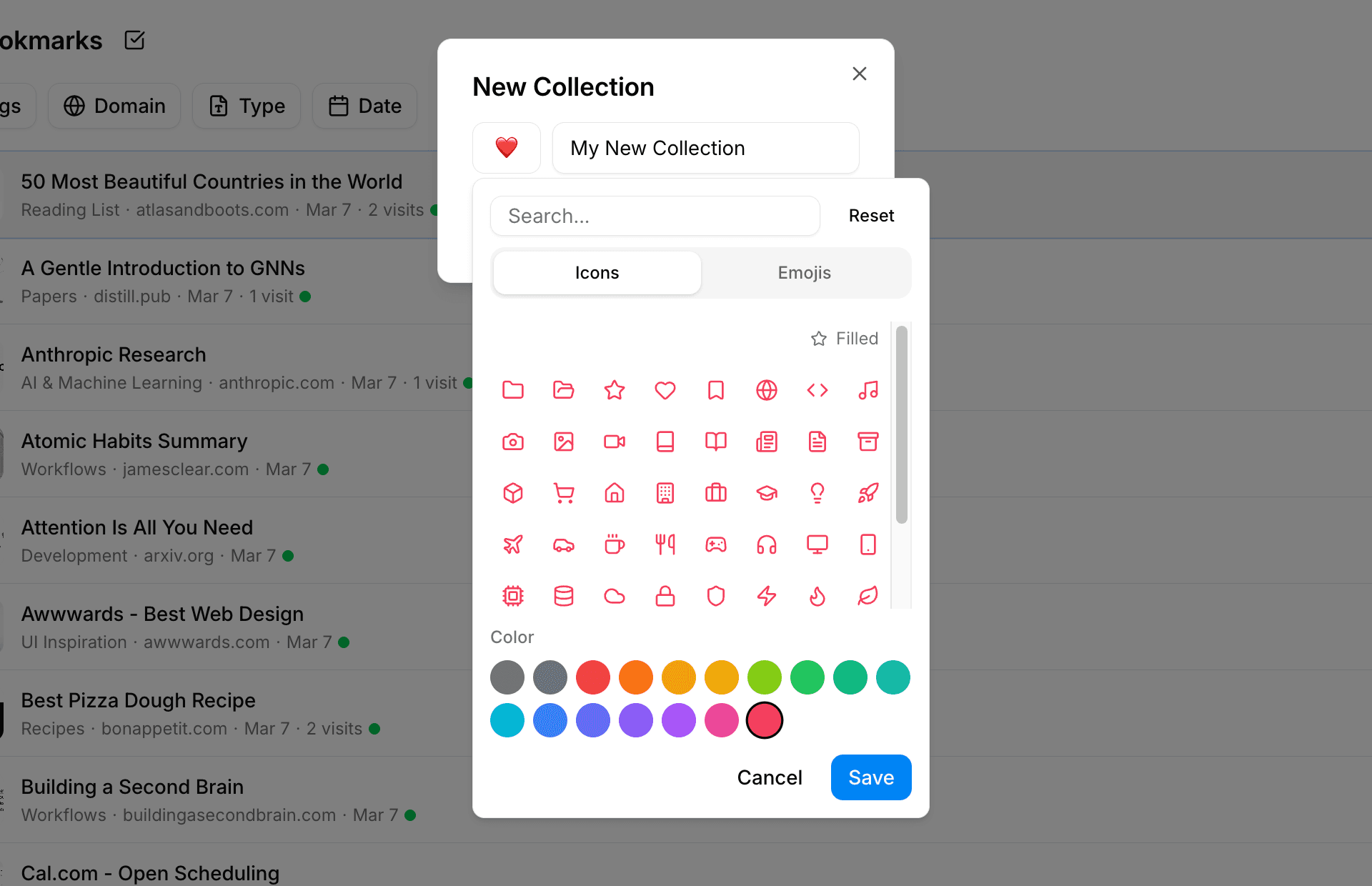
Every collection can have its own icon to make your sidebar easy to scan at a glance. Choose from 54 lucide icons available in 17 colors, or browse through 120+ emojis across 7 categories. Pick whatever makes each collection instantly recognizable to you.
Managing Your Collections
Right-click any collection (or use its menu) to access these options:
- Edit — Rename it, swap the icon, or move it under a different parent.
- Add subcollection — Create a new child collection inside the current one.
- Share — Generate a public link so others can see this collection (see Sharing & RSS).
- Delete — Sends the collection and all its bookmarks to the Trash, where you can recover them if needed.
Bookmark Counts and Subfolder Views
Each collection displays the number of bookmarks it contains right in the sidebar. When you open a collection, you can also browse bookmarks in its subcollections, grouped neatly by folder so you always know where things live.
Frequently Asked Questions
Is there a limit to how deep I can nest collections?
There is no hard limit. You can nest collections as many levels deep as you need. That said, keeping your hierarchy to three or four levels usually makes things easiest to navigate.
What happens to the bookmarks if I delete a collection?
Both the collection and all its bookmarks are moved to the Trash. Nothing is permanently deleted right away, so you can restore everything if you change your mind.
Can I move a collection to a different parent later?
Absolutely. Right-click the collection and choose Edit, then select a new parent. All the bookmarks and subcollections inside it will move along automatically.