Bookmarks
Bookmarks are at the heart of everything you do in bookmark.land. Each one stores a URL along with its title, description, tags, collection, notes, and metadata that gets pulled in automatically. Here is how to make the most of them.
How to Add a Bookmark
You have two ways to save a bookmark:
- Paste a URL — Click + Add Bookmark or press N, paste any URL, and press Enter. That is it.
- Import — Bring in bookmarks in bulk from Chrome, Firefox, Raindrop, or Pocket (see Import & Export).
When you paste a URL, bookmark.land automatically fetches the title, description, and favicon, and figures out the page type for you — whether it is an article, video, document, image, or plain link.

Editing a Bookmark
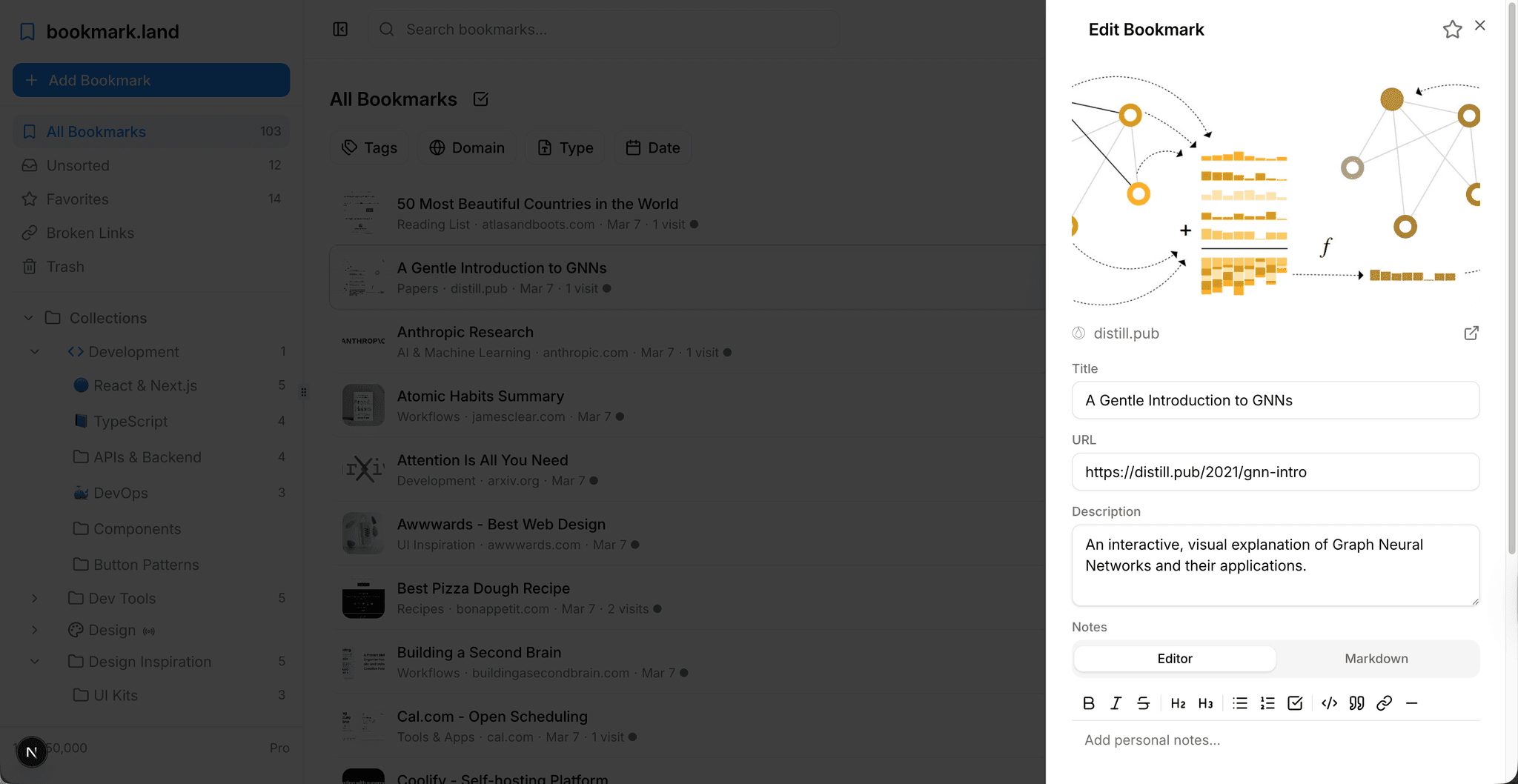
Need to fix a title or move a bookmark to a different collection? Hover over any bookmark and click the pencil icon, or right-click and choose Edit. From there you can update the title, URL, description, collection, and tags. Your changes save immediately — no extra button to press.
Marking Favorites
Have a few links you keep coming back to? Click the star icon on any bookmark to mark it as a favorite. All your favorites show up in a dedicated Favorites section in the sidebar, so your most important links are always just one click away.
Highlights and Notes
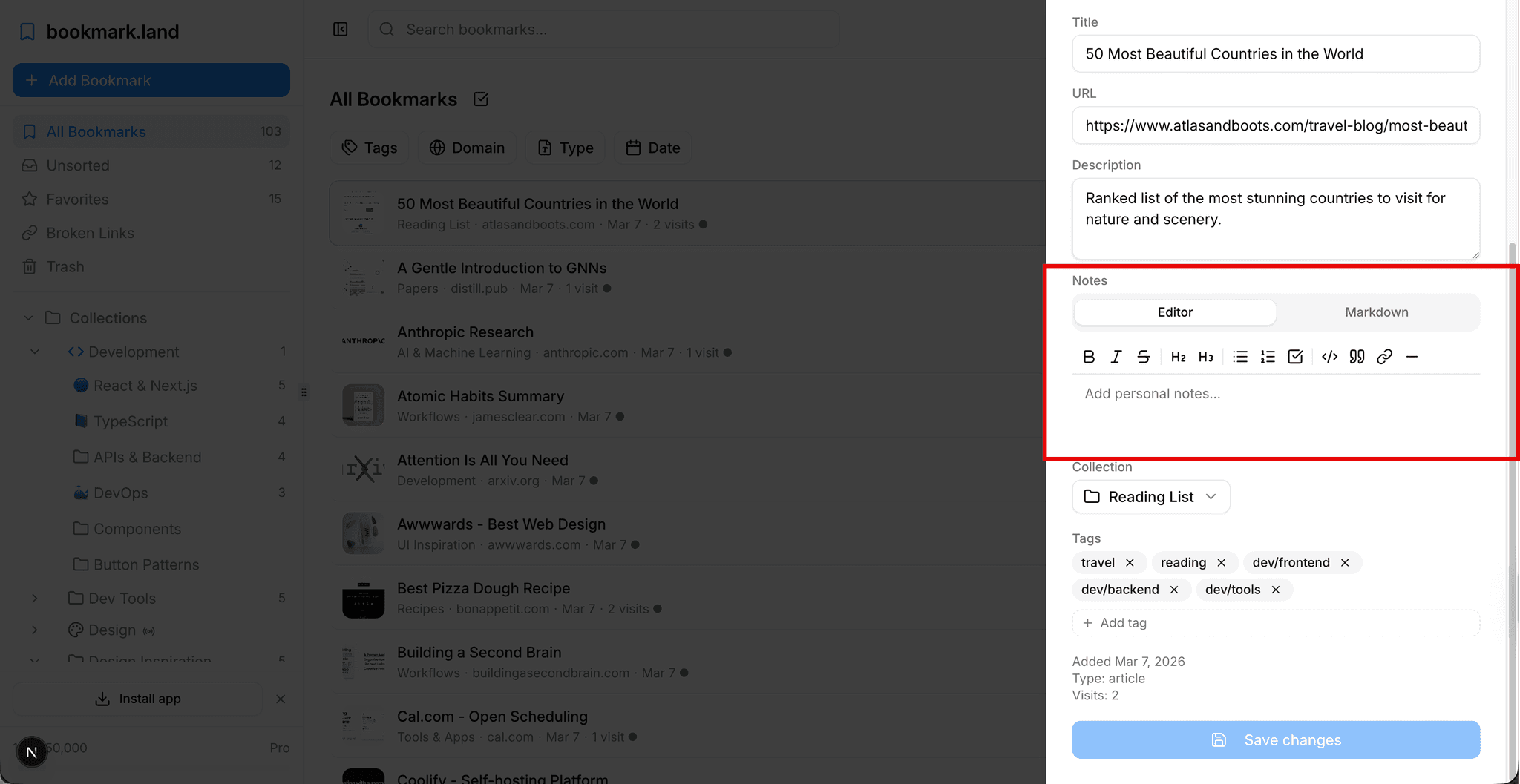
Every bookmark has a Notes field where you can capture why you saved it, jot down key takeaways, or add any personal context that will help you later. The best part? Notes are fully searchable, so you can find a bookmark by what you wrote about it — not just its title or URL.
Previewing Bookmarks Without Leaving the App
Click any bookmark to open the Preview Panel on the right side of your screen. It loads the page in an embedded view so you can scan the content without ever leaving your list. You can resize the panel by dragging its edge, or collapse it entirely when you do not need it.
How Duplicate Detection Works
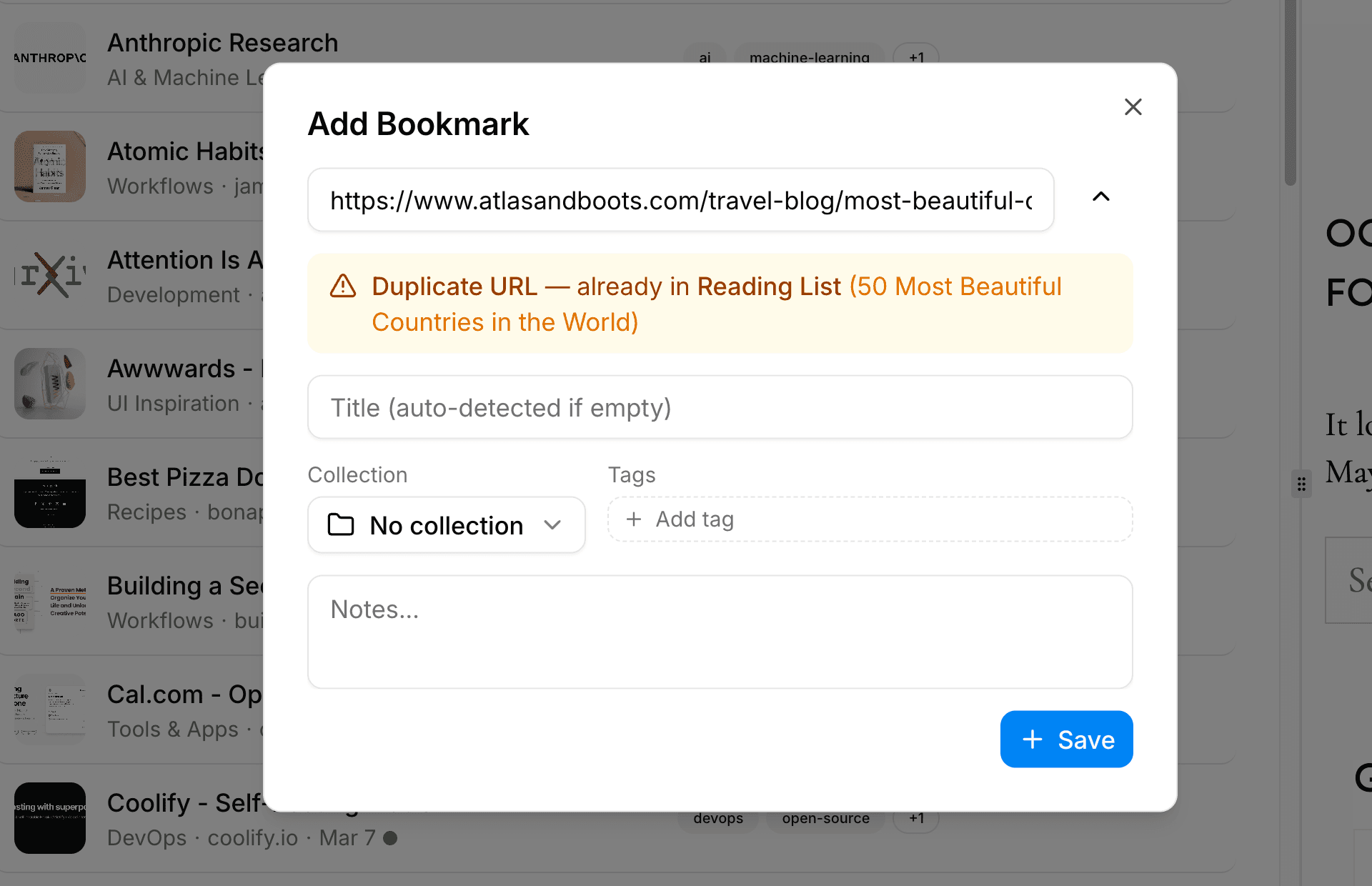
If you try to save a URL that already exists in your library, bookmark.land will let you know and show the existing bookmark. And if that duplicate happens to be sitting in the Trash, it will automatically restore it for you instead of creating a new entry. You can also scan your entire library for duplicates from the Duplicates page.
Frequently Asked Questions
What happens if I save the same URL twice?
bookmark.land catches duplicates automatically. You will see a warning with a link to the existing bookmark, so you never end up with accidental copies.
Are my notes included when I search?
Yes. Notes are fully searchable alongside titles, descriptions, and URLs. If you wrote it down in a note, you can find the bookmark by searching for those words.
Can I edit multiple bookmarks at once?
You can select multiple bookmarks and use bulk actions to move them to a different collection, add tags, or send them to the trash. Check the Bulk Actions guide for details.